





FAQs
How do I make payment using PayNow QR on the SP app?
Step 1: Under the “Bills” tab select “Pay” if you have an outstanding bill.
Step 2: You may edit the amount you would like to pay for any one utilities account.
Step 3: Select PayNow QR as your preferred payment mode.
Step 4: Tick the utilities account that you have selected in Step 2. Skip this step if you have only selected one account.
Step 5: A unique QR code will be generated. Download and save the QR code to your mobile device. Take note that the QR code is valid only for one-time use till 11:59PM SGT on the same day. The QR code is only available for download via the SP app. SP Group does not send QR codes via any other means such as email or SMS.
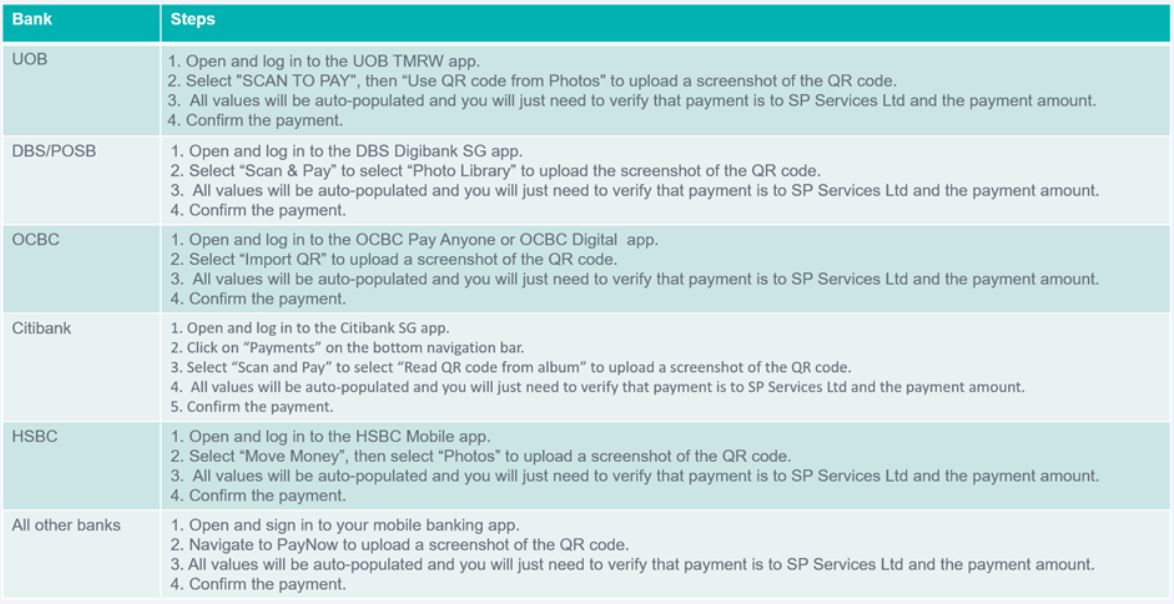
Step 6: Launch your preferred banking app and upload the QR code to complete the payment.
Repeat Steps 1 to 6 if you wish to make payment for another utilities account.
For more information on using PayNow QR to make quick and secured bill payment on the SP app: https://utilities.spdigital.sg/internal/paynow/paynow-landing
You may also refer to below for a step-by-step guide on completing payment on your preferred banking app. Before confirming payment, it is important to verify that payment is made to the correct merchant (SP Services Limited).
Kindly note that the guide below serves as a reference only and may change over time as determined by the relevant banks. Please refer to your respective bank for latest guides. Upon successful payment, you should receive a payment notification from your bank. You will also receive a mobile app push notification and email from SP Digital to confirm the receipt of payment.